
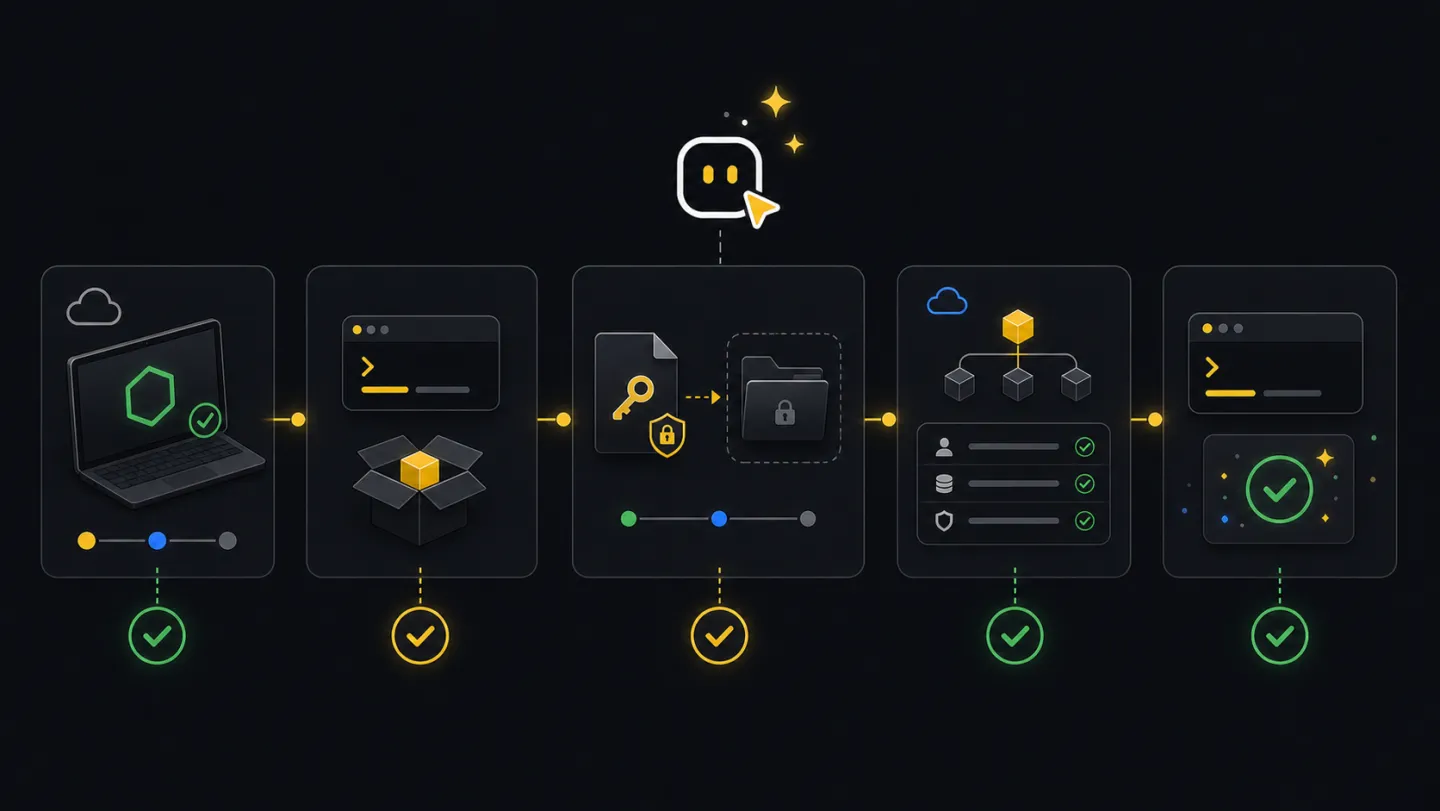
Start
Getting started.
Set up one terminal, CI job, or shell-capable agent so it can run xyte-cli against your Xyte account.
What you need
First setup needs an API key. The CLI stores it under a local profile label, uses default when you do not choose one, and auto-detects whether the key can use organization or partner APIs.
A Xyte API key. Save it outside this repository, for example ~/Desktop/xyte-api-key.txt.
Optional. Use one only when the same machine or CI runner manages more than one Xyte connection.
Usually auto-detected. Set xyte-org or xyte-partner only when your admin tells you to force one.
A place for command output, such as ./artifacts or ./reports.
Ask your Xyte admin for
Send this when you have the CLI installed but do not yet have the key and policy details.
Please send the values I need to set up xyte-cli:

API key delivery: key file or secret manager
Provider, only if auto-detect is disabled: organization or partner
Profile label, only if we use more than one Xyte connection:
Default artifact folder:
Allowed workflows: read-only reports, incident triage, device claiming, or approved writes
AI agent path
Give the agent the setup goal and a safe key source. It can run the checks, store the profile locally, and report whether the workspace is ready.
Can you check whether this machine is ready to use xyte-cli?Terminal and CI path
-
Check the runtime
Start with the environment doctor. If a global install is not available,
npxcan run the CLI without changing the repository.xyte-cli doctor environment --format json npx -y @xyteai/cli@latest doctor environment --format json -
Connect the API key
Use a key file outside the workspace for local setup. In CI, feed the key from the job secret through stdin. The CLI stores the key under the active profile, usually
default.xyte-cli setup run \ --non-interactive \ --key-file <path-outside-workspace> \ --format json printf "%s" "$XYTE_CLI_KEY" | npx -y @xyteai/cli@latest setup run \ --non-interactive \ --key-stdin \ --format json -
Check readiness
Run these before reports, incidents, device claiming, or approved writes.
xyte-cli config doctor --format text
xyte-cli status --mode fast --format json
Workflow
- RuntimeCan this shell run the CLI?Check Node.js and choose installed CLI,
npx, or workspace-local execution. - SecretWhere does the API key come from?Read it from a file, stdin, CI secret, or secret manager command.
- ProfileWhere is the key stored?Save the key under the active profile, usually
default. - DoctorCan Xyte answer?Confirm authentication, provider scope, and network access.
- OperateRun the first useful command.Move to status, incidents, reports, device claiming, or automation.
Ready state
A ready setup has an active profile, a usable credential, and a live status response.
Profile: default
Provider: organization
Credential: available
Connectivity: connected
Next: run a guide, inspect fleet state, or generate a report.
What to run next
Run the daily fleet report guide.
Run the incident triage guide.
Run the device claiming guide.
Use the CI and agent guide.
Provider scope
Two different settings use these words. Setup picks the key provider with --provider xyte-org|xyte-partner. Read commands pick the data scope with --provider-scope organization|partner|auto (on flow run it is --inspect-provider-scope). Most users leave the read scope on auto and only set a value when a key is organization-only or partner-only, or results look incomplete.
| Value | Used with | Use it when |
|---|---|---|
xyte-org | setup --provider | Setup uses an organization API key. |
xyte-partner | setup --provider | Setup uses a partner API key. |
organization | read --provider-scope | Read organization devices, spaces, incidents, or reports. |
partner | read --provider-scope | Read partner-level data when the key allows it. |
auto | read --provider-scope | Let the CLI choose from the stored profile and command context. |
Glossary
Every Xyte and CLI term used across these docs — tenant, profile, space, incident, Edge proxy, claim path, provider scope, flow, plan/apply, and more — is defined in plain language on the glossary page.
Common blockers
Install Node.js 22+ or run the command in an environment that already has it.
Move it outside the repository, check file permissions, and rerun setup.
Ask for a fresh key with access to the tenant, then rerun setup.
Add an explicit scope to the read command: --provider-scope organization or --provider-scope partner (on flow run use --inspect-provider-scope).
Run xyte-cli config doctor again after fixing VPN, firewall, or proxy access.
More fixes — including how to remove a stored key, remove a tenant, or uninstall — are on the Troubleshooting page.