
Authoring
Custom workflows.
Use custom workflows when your team repeats the same built-in flow with the same defaults and wants one stable command.
What they are
A custom workflow is a named shortcut. It points to a built-in flow and pins defaults so operators and agents do not have to remember the same values every time.
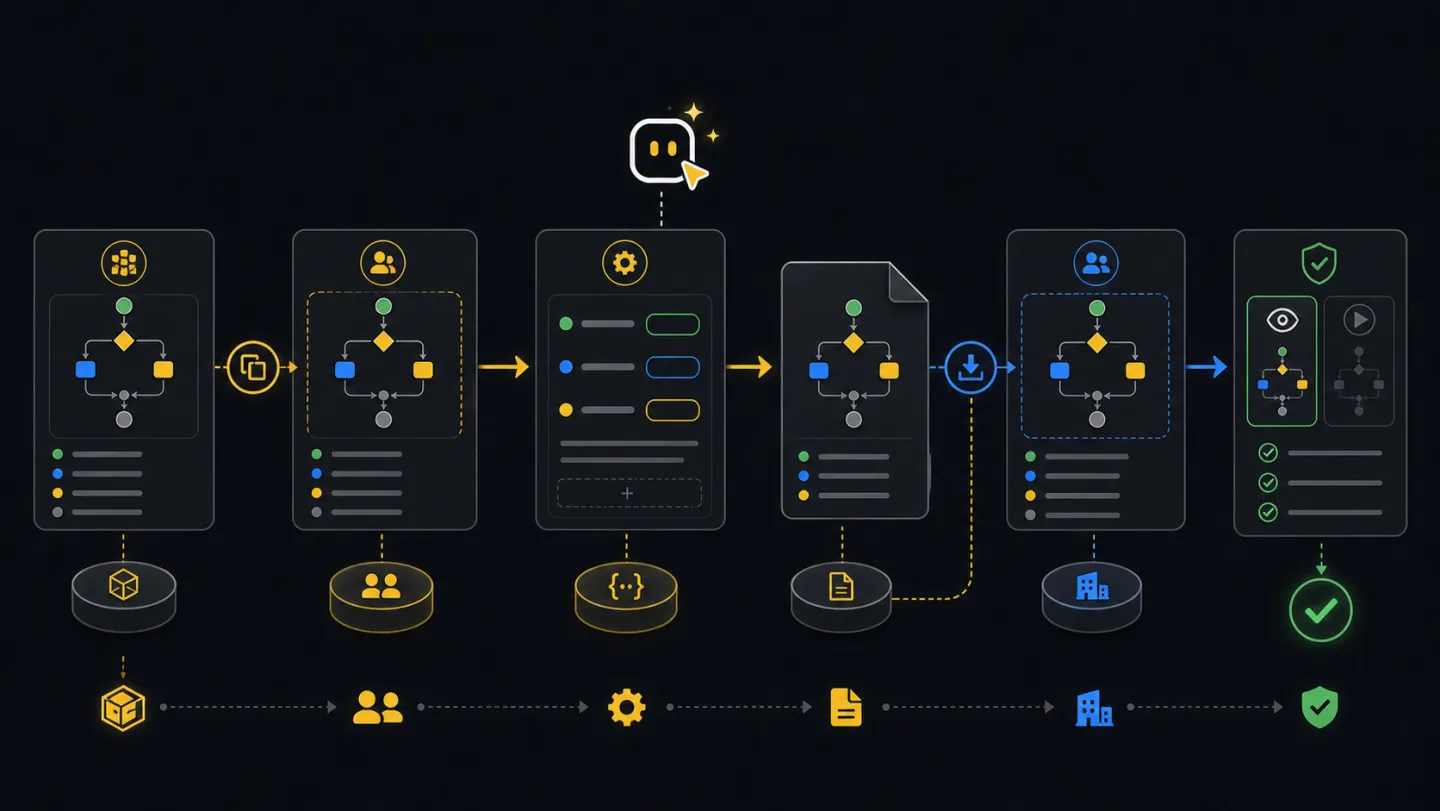
Workflow
- BaseChoose built-in flowUse the flow that already matches the task.
- AliasName it for the teamUse a stable id such as
flow.noc-watch-triage. - DefaultsPin contextStore values like report window, region, or poll timeout.
- PlanRun safelyCheck the alias in
--planbefore anyone relies on it. - ShareExport JSONMove the alias to another workspace without sharing secrets.
Ask an agent
Create a custom workflow when the repeated job is clear and the base flow is known.
Create a custom xyte-cli workflow for our daily NOC triage.
Use the built-in watch-to-triage flow, set the window to 12 hours, and run it in plan mode.

Create an Edge claim batch alias for our rollout team.
Pin the poll interval and timeout, then show the plan command.
Terminal and CI
Create the alias once, run it in plan mode, then use the shorter alias in terminal, CI, or agent prompts.
xyte-cli flow create flow.noc-watch-triage \
  --based-on flow.watch-to-triage \
  --title "NOC Watch Triage" \
  --description "NOC incident triage handoff" \
  --var window_hours=12

xyte-cli flow run flow.noc-watch-triage \
  --tenant <tenant-id> \
  --plan
Examples
Create flow.noc-watch-triage from flow.watch-to-triage and pin the reporting window used by the shift.
Create flow.customer-weekly-report from flow.daily-deep-dive-report and pin the report window your customer expects.
Create flow.ops-device-command from flow.device-command when a team repeatedly targets the same device but still needs a command approval gate.
Create flow.rollout-edge-claim-batch from flow.edge-claim-batch and pin polling behavior for a longer deployment window.
Create flow.rollout-edge-params from flow.edge-params-update-batch and pin the prepared input path used by the rollout team.
Create a team alias for the remediation path, but pass incident and device context at runtime because those change per issue.
Share and import
Shared workflow files contain the alias, base flow, title, description, and defaults. Keep API keys and secrets out of them.
xyte-cli flow share flow.noc-watch-triage --out ./artifacts/flow.noc-watch-triage.json
xyte-cli flow import --file ./artifacts/flow.noc-watch-triage.json
xyte-cli flow import --file ./artifacts/flow.noc-watch-triage.json --force
Rules
- Use ids like
flow.<team>-<intent>so humans understand the owner and purpose. - Use
--varfor small defaults and--context-jsonwhen values are easier to review in a file. - Runtime values override stored defaults. That is useful for incident ids, device ids, and one-off report windows.
- Use
--replace-defaultsonly when you want to remove old defaults instead of merging new ones. - After import or edit, run
--planbefore using the alias in automation.
xyte-cli flow edit flow.noc-watch-triage \
  --description "NOC handoff triage flow" \
  --var region=us

xyte-cli flow edit flow.noc-watch-triage \
  --replace-defaults \
  --var region=us \
  --var window_hours=6